| Problem | Possible solutions |
|---|
I can’t connect anymore because the network security key changed. | First, try to connect to the network. On the error message that appears, tap or click Forget network. Then connect to the network again, enter the new network security key or passphrase if requested, and then click OK. |
I can't connect to a home network. | If running the Network troubleshooter didn't help, here are some other things to check:
-
Make sure the router and cable or DSL modem are turned on.
-
If you're using a wired connection, make sure the network (Ethernet) cable is inserted into the network adapter in your PC. Each end of a network cable looks like this:
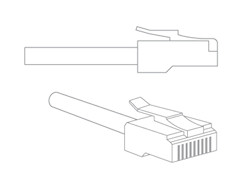 A network (Ethernet) cable A network (Ethernet) cable
-
If you're using a wired connection, make sure the network cable isn't defective. You can test this by using a different cable that you know works properly.
-
Make sure the cable is connected to the correct port on the router. It shouldn't be connected to the "uplink," "Internet," or "WAN" port. In addition, some routers turn off the port next to the uplink, Internet, or WAN port, so try using a different one.
-
If your PC has a wireless network adapter, Windows will automatically detect wireless networks that are nearby. To see a list of wireless networks that Windows has detected, follow this step: If Windows doesn't detect a network that you think is in range of your PC, see Why can’t I find a wireless network?
Make sure your router and the wireless network adapter in your PC will work together. To work, the network adapter in your PC must use a wireless standard that is equal to or older than the router’s wireless standard. For example, if the network adapter in your PC uses the 802.11n wireless standard (also called Wireless-N) but your router uses 802.11g, (also called Wireless-G), you won't be able to connect because the Wireless-G standard is an earlier version and doesn’t recognize Wireless-N. However, if the router uses Wireless-N but the adapter in your PC uses Wireless-G, you should be able to connect if the router is set to mixed mode, since Wireless-N works with some or all of the earlier standards (802.11a, 802.11b, and 802.11g). -
Many laptops and tablets have a wireless switch on the front or side of the PC. If your PC has a switch, make sure it's turned on. Some PCs also use a function key combination to turn the switch on or off. Check the info that came with your PC for details on locating the wireless switch.
Make sure airplane mode is off and Wi‑Fi is on. -
Swipe in from the right edge of the screen, and then tap Settings.
(If you're using a mouse, point to the lower-right corner of the screen, move the mouse pointer up, and then click Settings.)
Tap or click the wireless network icon (  ).
-
Make sure Airplane mode is set to Off and Wi‑Fi is set to On.
-
Use Device Manager to verify that your network adapter is working correctly.
Swipe in from the right edge of the screen, and then tap Search.
(If you're using a mouse, point to the lower-right corner of the screen, move the mouse pointer up, and then click Search.)
Enter Device Manager in the search box, and then tap or click Device Manager.
 You might be asked for an admin password or to confirm your choice. You might be asked for an admin password or to confirm your choice.
-
Double-tap or double-click Network adapters, press and hold or right-click your adapter, and then tap or click Properties.
-
Under Device status, check to see that the device is working properly.
-
The network adapter driver might not be working properly. Download and install the latest version of the driver from the manufacturer's website.
-
Clear the DNS resolver cache.
-
For advanced info about troubleshooting wireless network problems, see A Support Guide for Wireless Diagnostics and Troubleshooting.
|
I need to connect to a hidden wireless network. |
A hidden wireless network is a wireless network that isn't broadcasting its network ID (SSID). Typically, wireless networks broadcast their name, and your PC “listens” for the name of the network that it wants to connect to. Because a hidden network doesn’t broadcast, your PC can't find it, so the network has to find your PC. For this to happen, your PC must broadcast both the name of the network it's looking for and its own name. In this situation, other PCs “listening” for networks will know the name of your PC as well as the network you’re connected to, which increases the risk of your PC being attacked. If you still want to connect to a hidden network despite the risks, you'll need to gather some info from the wireless router first. -
Gather the following info:
-
Network ID (SSID), which is the name that would typically appear in the list of available networks
-
Type of security (WPA, WPA2, WEP, or 802.1X)
-
Type of encryption
-
Security key
 Tap or click to connect to a network. Tap or click to connect to a network.
Tap or click Hidden network, tap or click Connect, and then enter the network info. The network will be added to your list of networks and will be available to connect to in the future when your PC is in range of the network.
|
I can't connect to other PCs on my home network. | Turn on the Find devices and content slider. Follow these steps on your PC and on any network PC running Windows 8.1 or Windows RT 8.1 that you want to connect to. Do this only if you know and trust the people and devices on the network. Swipe in from the right edge of the screen, tap Settings, and then tap Change PC settings.
(If you're using a mouse, point to the lower-right corner of the screen, move the mouse pointer up, click Settings, and then click Change PC settings.) -
Tap or click Network, tap or click Connections, and then tap or click your network connection.
-
Turn on Find devices and content.
NoteIt's usually not safe to turn this on if you're connected to a public network.
|
I can't connect to my workplace network from home (or another location). | Here are some things to try:
-
Make sure you entered the virtual private network (VPN) server name exactly as provided by your network administrator.
-
You must have an active Internet connection for a VPN connection to work.
-
If your modem is external, make sure the modem power is turned on.
-
Contact your network administrator to make sure you have the appropriate connection and domain permissions on the remote access server.
-
A VPN connection won't work with an active Winsock proxy client. Contact your network administrator to make sure the Winsock proxy client isn't enabled.
-
If you know the IP address (for example: 131.107.10.25) of a website, enter that address in the address bar of your web browser, and then press Enter. If this works, there's probably a Domain Name System (DNS) resolution problem. For assistance, contact your network administrator.
-
If you have special software that's required or installed by your workplace, it could be part of the problem. For assistance, contact your network administrator.
-
If you know the IP address (for example: 131.107.10.25) of your VPN server, enter that address for the VPN connection, and then press Enter. If this works, there's probably a DNS resolution problem. For assistance, contact your network administrator.
-
This could be a certificate problem. For assistance, contact your network administrator.
-
There could be a problem with the server you're trying to connect to. For assistance, contact your network administrator.
NoteWindows RT 8.1 has built-in support for VPN. Third-party VPN software can also be installed on Windows RT 8.1 if it's available in the Windows Store. For help with third-party VPN software, contact the third-party VPN provider. For more info on VPN standards supported in Windows RT 8.1, see Windows RT 8.1 VPN. |
My wireless connection isn't connected when my PC resumes from sleep or hibernation. | There are two possible causes:
Automatic connection is turned off for this network. The next time you connect to the network, select the Connect automatically check box. When coming out of sleep or hibernation, your wireless network connection might not reconnect if the power options on your wireless adapter are set to a power-saving mode. Here's how to check or change your current power options. Tap or click to open Power Options. -
Next to your current power plan, tap or click Change plan settings, and then tap or click Change advanced power settings.
-
Double-tap or double-click the Wireless Adapter Settings section, and then double-tap or double-click the Power Saving Mode section.
-
If the Plugged in setting is currently anything other than Maximum Performance, tap or click it, and then select Maximum Performance.
Note
You can also set the On battery setting to Maximum Performance.
|
I need to find my network security key. | If your PC is already connected to the network, and you're looking for the security key so that someone else can connect to the network, you can find it in your network settings. Show allTap or click to open Network and Sharing Center. Tap or click Change adapter settings. Press and hold or right-click the network name, and then tap or click Status. Tap or click Wireless properties, and then tap or click the Security tab. Select the Show characters check box.
If you're looking for the security key so that you can connect to the network, first check for a push button on the router. If you find a push button, press it and see if the router automatically adds your PC to the network. Some wireless router manufacturers set a default security key that you might be able to find on a sticker in the documentation or on the bottom of the router. If you still can't find it, you can open the wireless router settings webpage. This is where the security key is set up or automatically generated. -
Connect your PC to the router using a network (Ethernet) cable.
-
Open a web browser and enter the IP address for your wireless router
into the search bar (for example, 192.168.1.1 or 172.16.0.0). You can find the default IP address in the documentation that came with your router.
-
Enter the user name and password to open the router settings webpage. Most router documentation contains a default user name and password.
-
On the router settings webpage, look for a wireless or wireless settings option. Depending on the router manufacturer, this might be a tab, icon, or option in a task pane.
-
On the wireless settings page, look for a security or wireless encryption setting. The security key (sometimes called a network key, a passphrase, or a network password) should be listed nearby.
Note
Different router manufacturers have different settings pages. If you can't find the router settings, contact the router manufacturer.
|
Windows reports that my connection is "Limited." |
This means the PC has successfully connected to the router, but the PC wasn't assigned a valid IP address, so you can't actually get to the Internet. If you're connected to a home network, try restarting the router. If you're connected to a domain network or a public network, contact the technical support for that network. NoteYou can only join a domain if your PC is running Windows 8.1 Pro or Windows 8.1 Enterprise. |